
Connect your support mailbox
Owners and admins connect mailboxes in Settings > Company > Mailboxes.
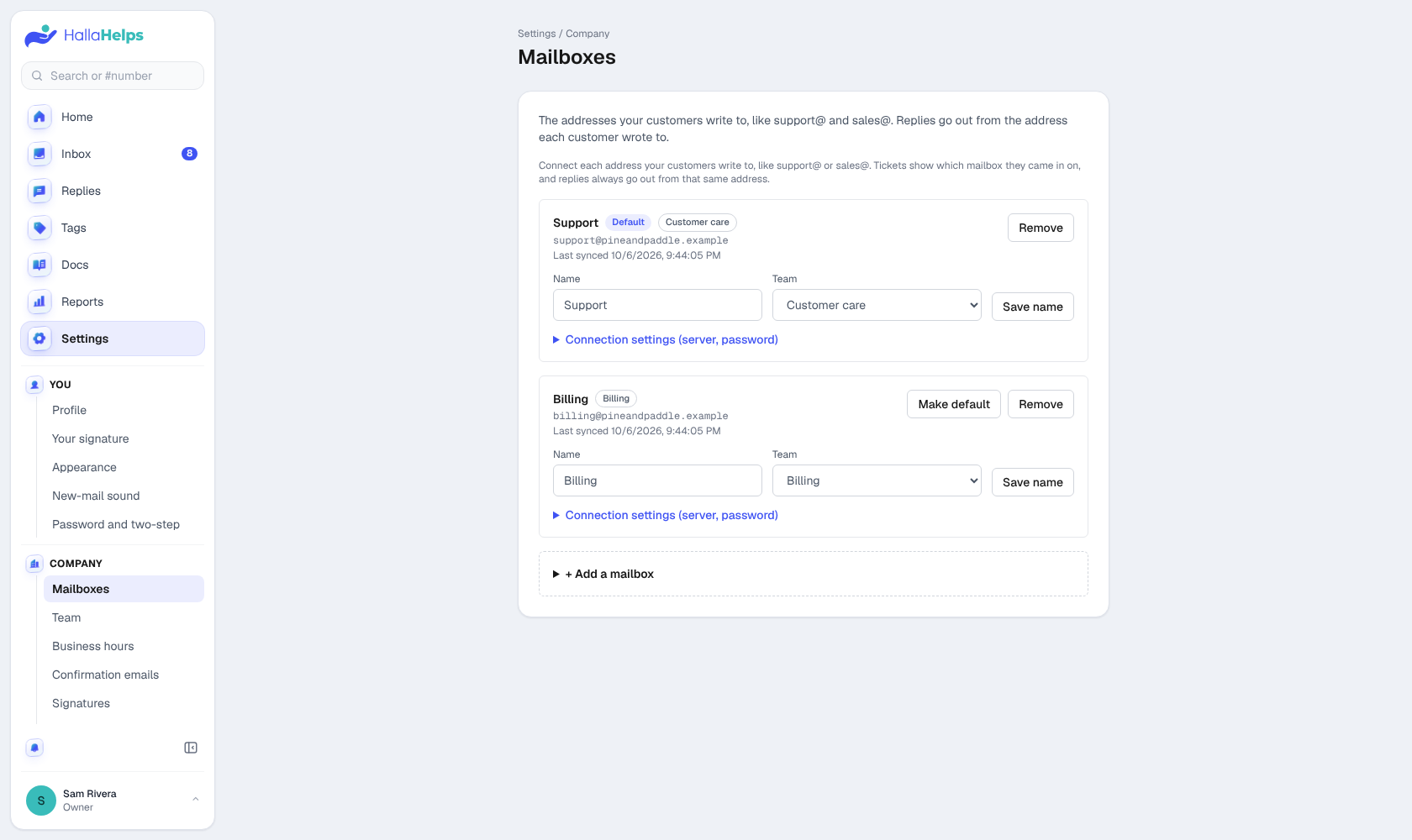
- Click Connect a mailbox (or Add a mailbox).
- Pick your email provider. Most of the server settings fill in for you.
- Enter the mailbox address and its password (or app password), then save. HallaHelps tests the connection before saving.
The last 7 days of mail come in right away, so recent conversations aren't lost. After that, new mail is checked about every 2 minutes. You can also click the sync button at the top of the inbox list to check now.
Your provider
- Gmail and Google Workspace: turn on 2-Step Verification for the account, then create an app password at myaccount.google.com/apppasswords and use it instead of your regular password.
- Microsoft 365 and Outlook.com: choose Microsoft and sign in with Microsoft. No password or server settings. Shared mailboxes like support@ work too.
- Hostinger, Zoho, Titan, Namecheap, GoDaddy, Fastmail, Yahoo, iCloud and most other hosts: pick yours from the list and enter the mailbox password. Fastmail, Yahoo, iCloud and Zoho (with two-step on) need an app password.
Several addresses
Connect more than one address (support@, billing@, sales@) and each gets its own folder in the sidebar. Replies always go out from the address the customer wrote to. How many mailboxes you can connect depends on your plan.
You can name each mailbox, link it to a team, and choose a default (used for new messages).
Security
Mailbox passwords are encrypted before they're stored, and connections to your mail server always use encryption. HallaHelps staff never see your mailbox password.
If a mailbox stops working
If the password changes or the server refuses the connection, a red notice appears above the inbox. Enter the new password in Settings > Company > Mailboxes and mail starts flowing again.