Slack, Microsoft Teams, Stripe, webhooks and Zapier
Owners and admins connect other apps in Settings > Connections.
Slack
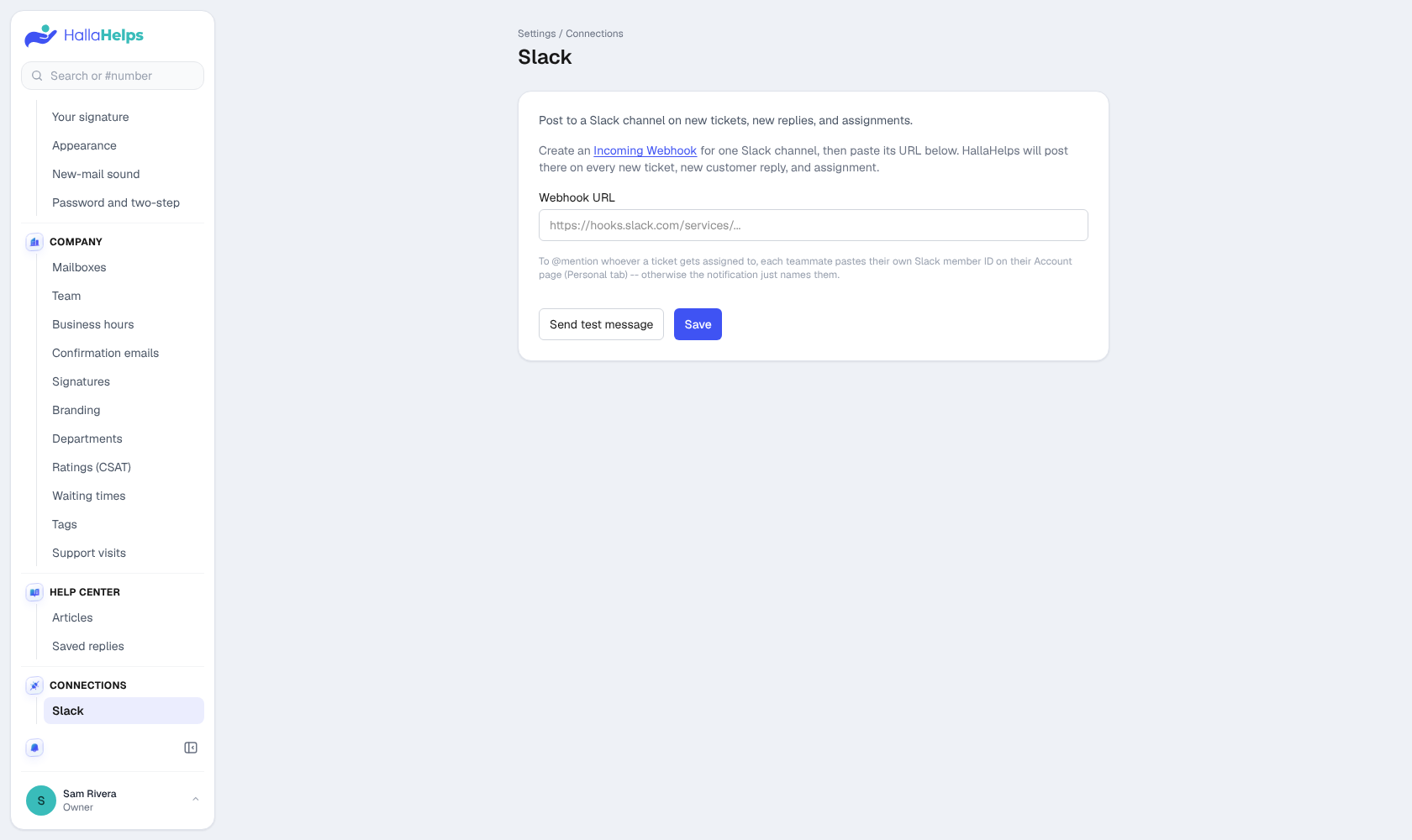
Post to a Slack channel on new conversations, new replies and assignments. Create an incoming webhook in Slack for the channel, paste its address, test it, and save. Each person can add their Slack member ID in their profile so assignments @mention them.
Microsoft Teams
The same, for a Teams channel: create a Workflows webhook in Teams and paste its address.
Stripe
See each customer's Stripe details beside their conversation: their plan and its status, recent payments (including failed ones and why), invoices, and a link to open them in Stripe. Everyone on the team sees it; it's on every plan.
An owner connects it with a restricted, read-only Stripe key:
- In Stripe, open Developers > API keys and click Create restricted key.
- Name it HallaHelps and set Customers, Charges, Subscriptions, Invoices and Products to Read. Leave everything else as None.
- Copy the key (it starts with rk_live_) and paste it in Settings > Connections > Stripe.
HallaHelps only reads from Stripe, never changes anything, and doesn't keep a copy. Secret keys (sk_) aren't accepted because they can charge and refund. The customer is found by the email address they wrote from (and any address linked to them).
Webhooks and Zapier (Pro)
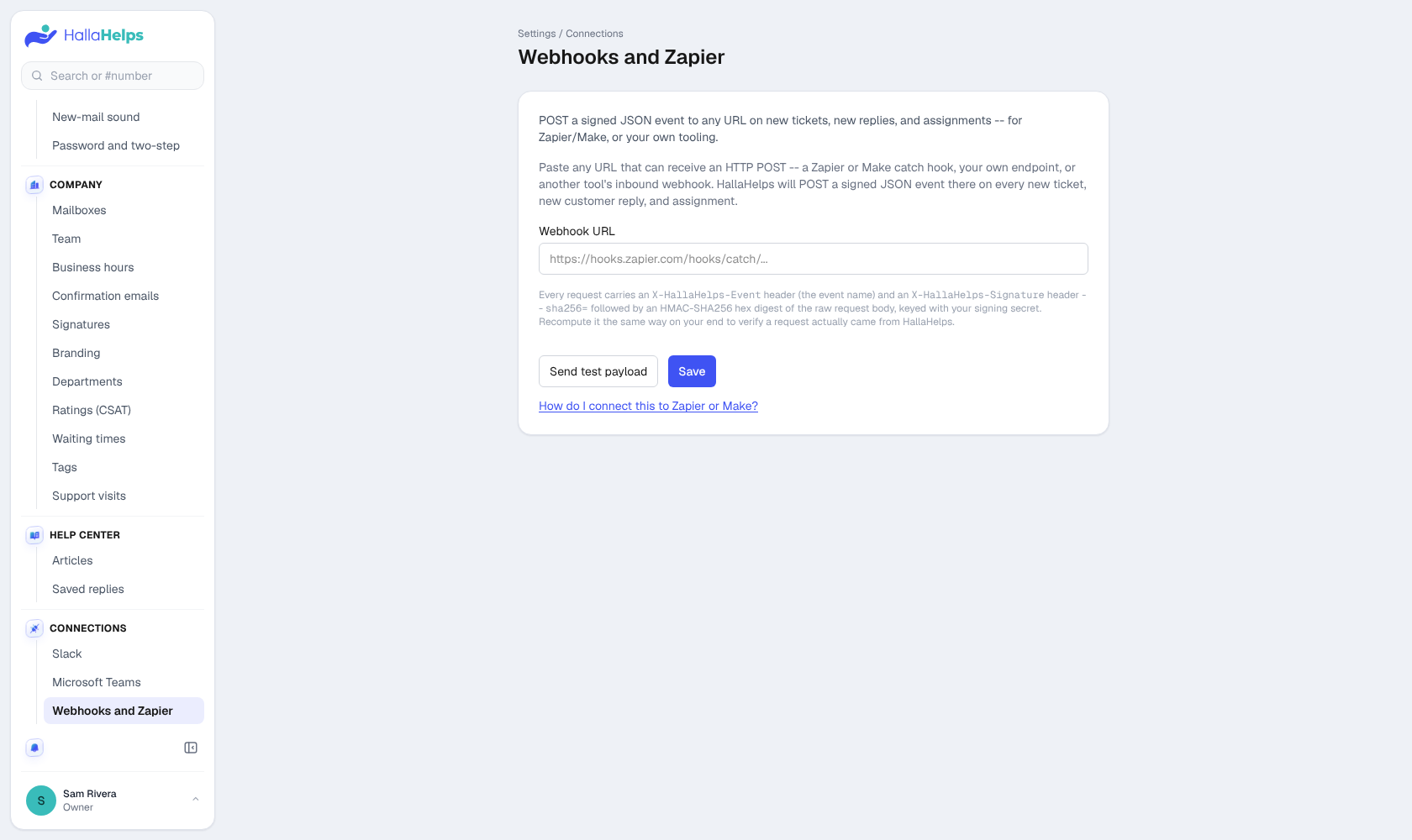
Send each event (new conversation, new reply, assignment) to any address as signed JSON. Use it with Zapier, Make or your own tools. The page links to step-by-step Zapier instructions.
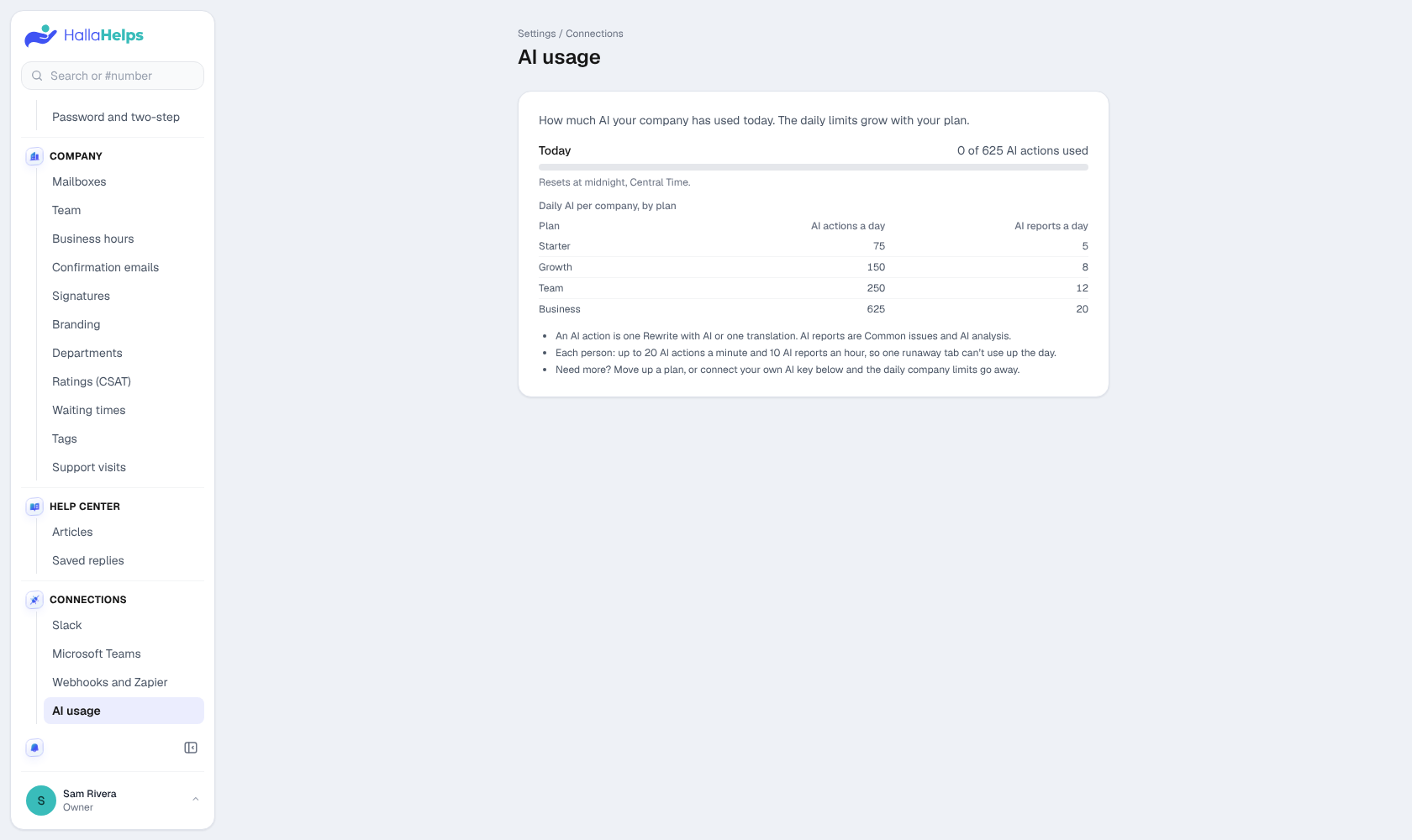
AI usage
See how many AI actions (rewrites, translations, reports) your company has used today and your daily limits. With Pro you can also connect your own Anthropic key, with no HallaHelps daily AI limits.