Find your way around
Everything lives in the menu on the left.
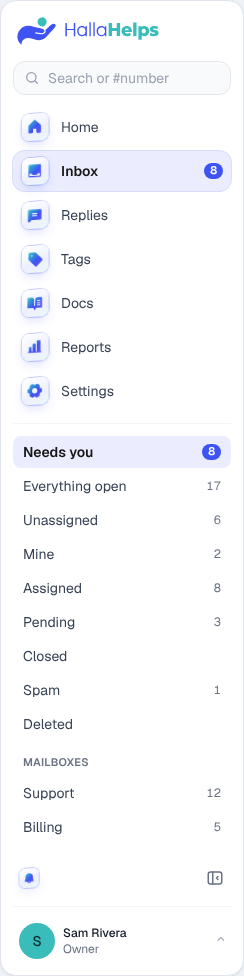
- Home: what needs you, each mailbox at a glance, and (owners and admins) today's numbers.
- Inbox: every conversation. The number is how many need you.
- Replies: your saved replies.
- Tags: the labels you put on conversations.
- Docs: your public help center (owners and admins).
- Reports: how your team is doing (owners and admins).
- Settings: your own preferences, and your company's.
At the bottom: the bell (new-mail sound on or off), the button that shrinks the menu to icons, and your name, which opens your account menu.
Inbox folders
When you're in the Inbox, the menu lists folders with counts:
- Needs you: open conversations that are yours or nobody's yet. Start here.
- Everything open: everything open or pending.
- Unassigned, Mine, Assigned, Pending, Closed, Spam and Deleted.
- Mailboxes: when you have more than one address, each gets its own folder.
Search or jump
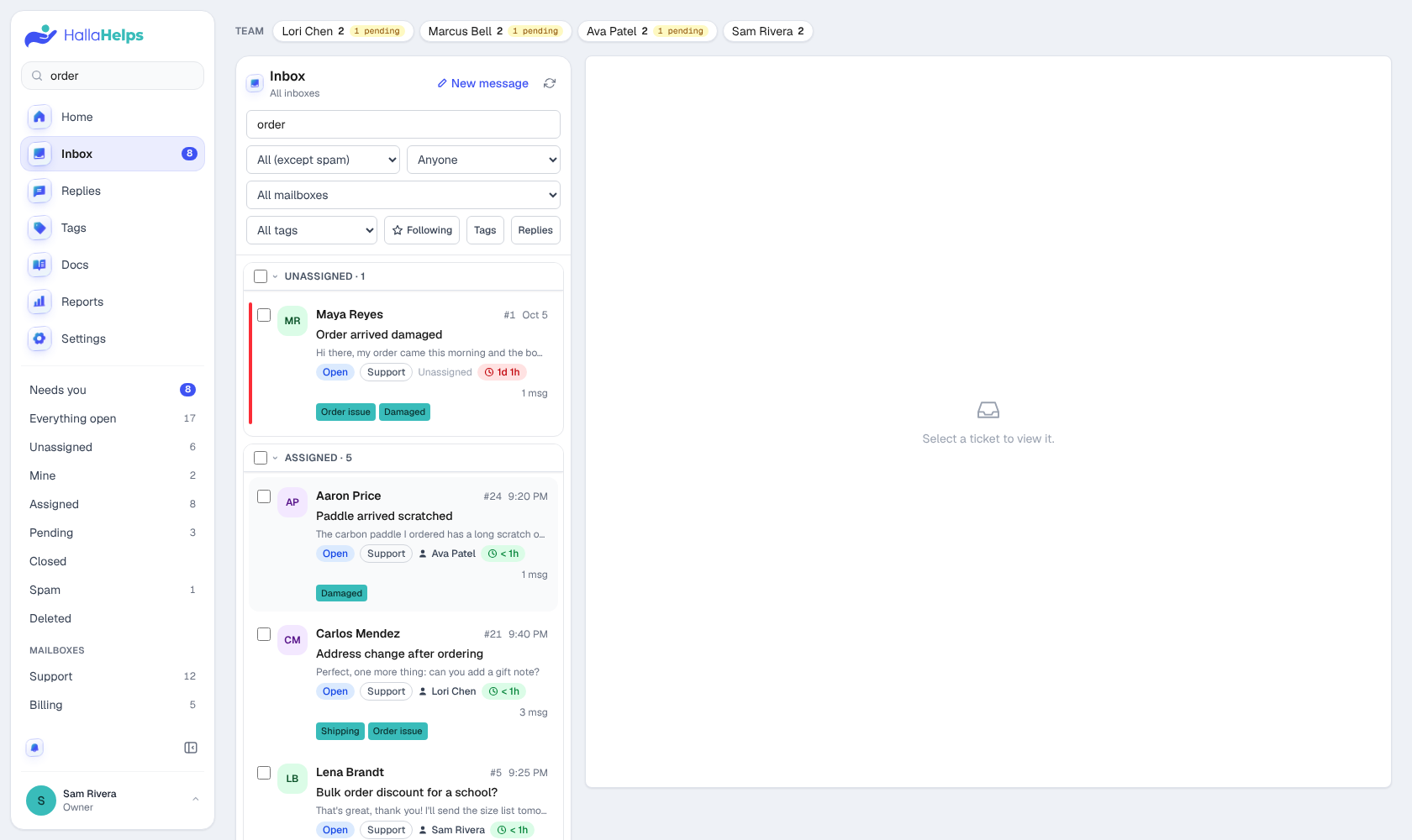
Type in Search or #number at the top of the menu to search every conversation, including messages and internal notes. Type a ticket number (like 42 or #42) to jump straight to it.
Icons only
Click the panel button at the bottom of the menu to shrink it to icons. HallaHelps remembers your choice. Settings pages open the full menu so you can see the setting names, and tapping your photo opens it too.
On your phone
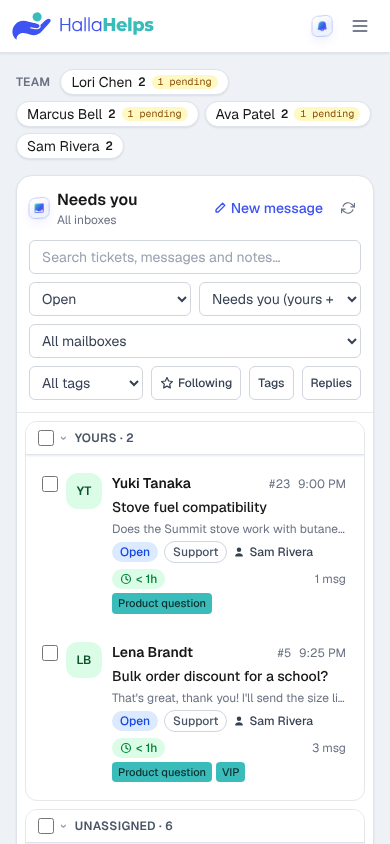
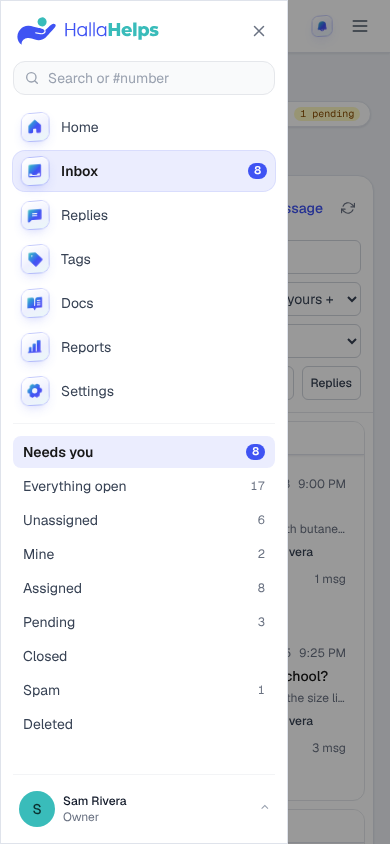
On a phone the menu folds into the button at the top right.