
Signing in and security
Two-step verification
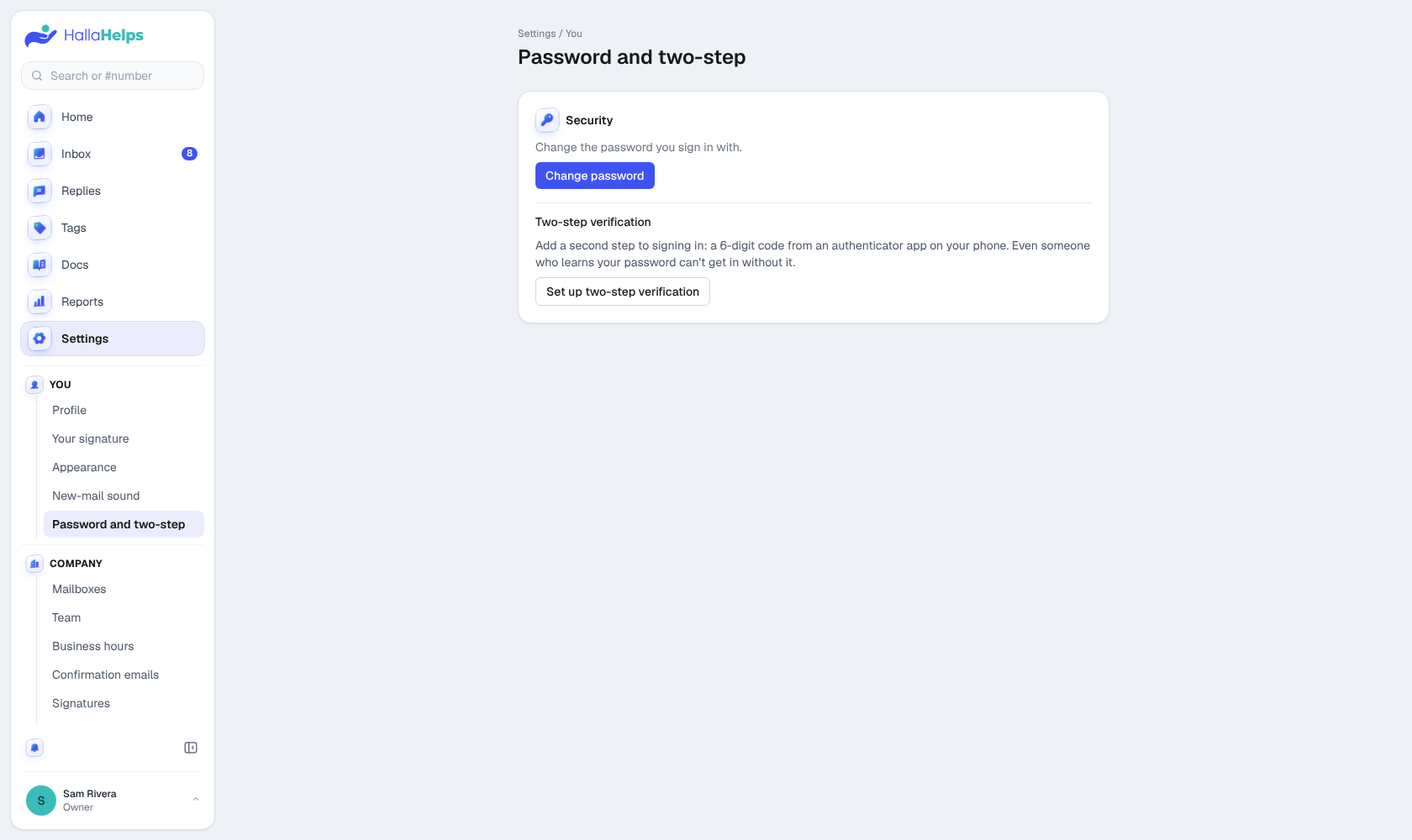
Add a second step to signing in: a 6-digit code from an authenticator app on your phone (like Google Authenticator, Microsoft Authenticator or 1Password). Even someone who learns your password can't get in without it.
- Go to Settings > You > Password and two-step.
- Click Set up two-step verification and scan the code with your app.
- Enter the 6-digit code to finish.
Lost your phone? An owner or admin can reset your two-step from the Team page so you can set it up again.
Sign-in options
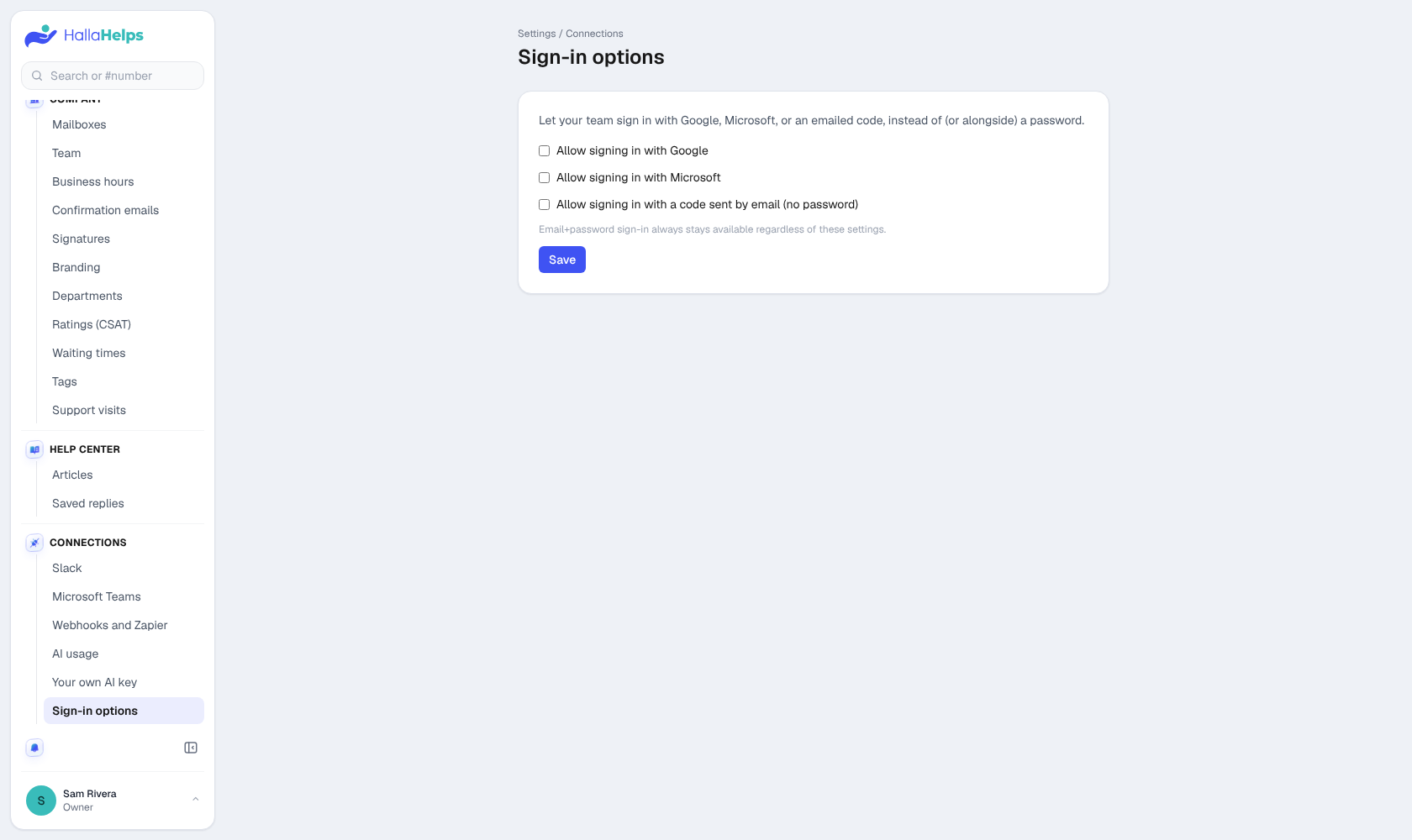
Owners and admins choose how the team can sign in, in Settings > Connections > Sign-in options: with Google, with Microsoft, or with a code sent by email. Signing in with an email and password always works too.
Company login (SAML single sign-on)
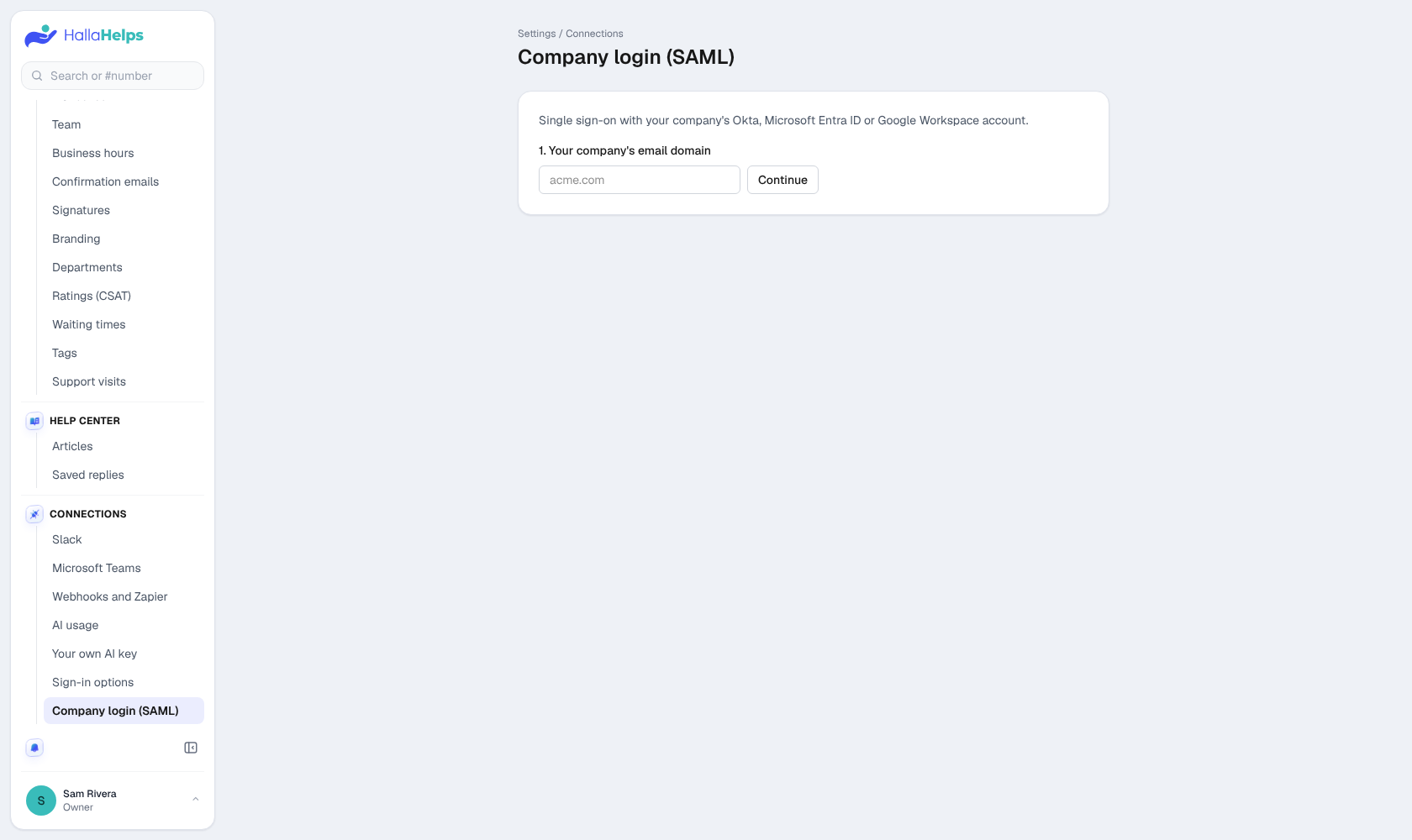
On the Business plan, connect your company's identity provider (Okta, Microsoft Entra ID or Google Workspace) so people sign in with their work account. You prove you own your email domain with a DNS record, connect the provider, and can then require company login for everyone except owners.
Good habits
- Each person has their own login. Never share one.
- Remove people from the Team page as soon as they leave.
- Owners can see every sign-in setting change in the audit log (Settings > Billing and data > Audit log).