Switching from Help Scout
Bring your Help Scout history with you: every conversation with its replies, internal notes and files, tags, who it was assigned to, your customers' details, saved replies, workflows and Help Scout Docs articles. It's free on every plan, and nothing in Help Scout changes.
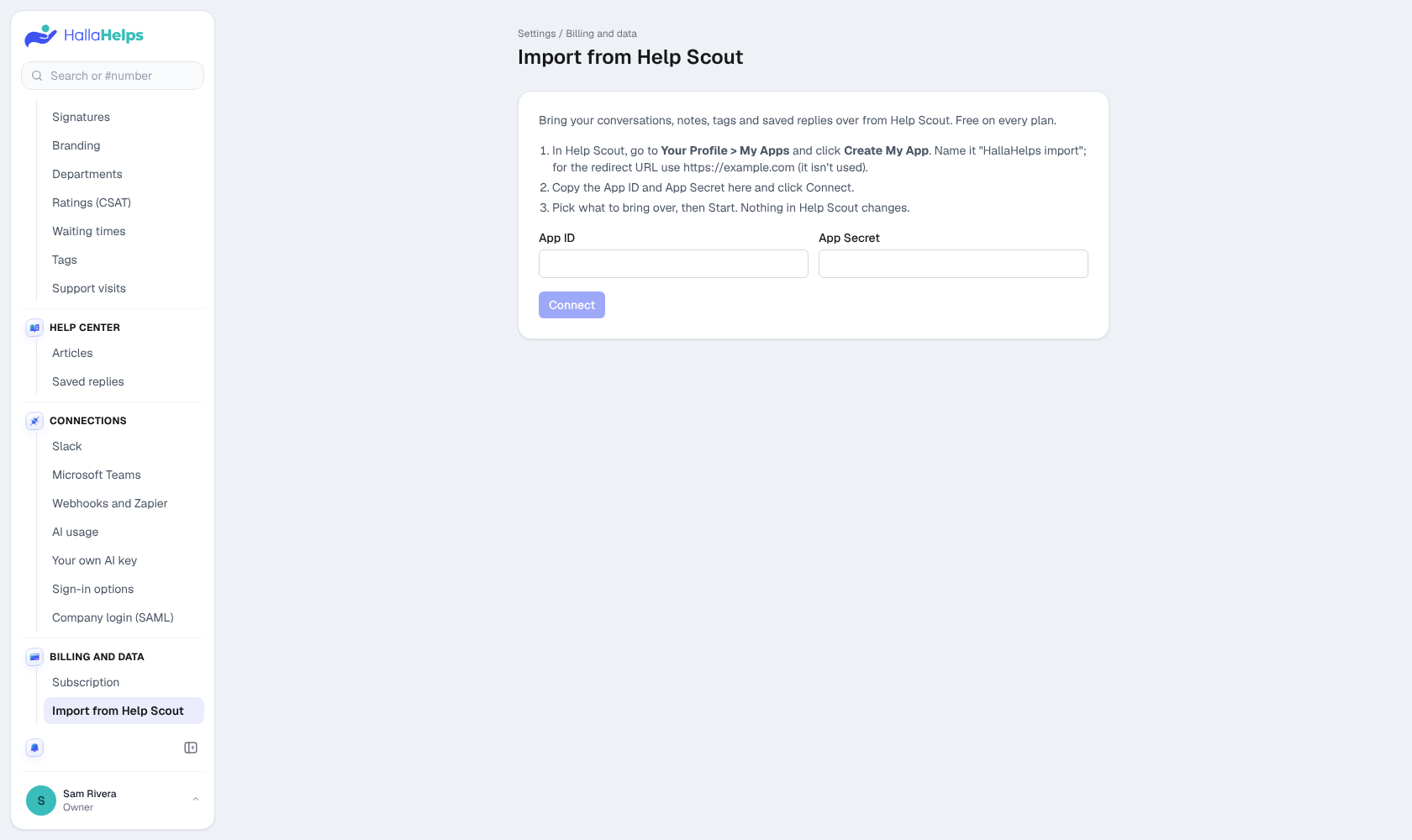
Owners and admins start it in Settings > Billing and data > Import from another help desk and pick Help Scout.
1. Create an app in Help Scout (about 2 minutes)
- In Help Scout, click your photo, then Your Profile > My Apps.
- Click Create My App. Name it "HallaHelps import". For the redirect URL, use https://example.com (it isn't used).
- Copy the App ID and App Secret.
2. Connect and choose
- Paste the App ID and App Secret into HallaHelps and click Connect. You'll see your Help Scout mailboxes and how many conversations each has.
- Pick which HallaHelps mailbox each Help Scout mailbox goes into, or Don't import.
- Choose All history or only conversations started between two dates.
- Under Also bring over, tick what you want: files, customer details, saved replies, workflows and Help Scout Docs articles.
- Click Start import.
Help Scout Docs articles
Docs has its own key. In Help Scout, click your photo, then Your Profile > Authentication > API Keys, and copy (or generate) the key. Paste it under Help Scout Docs articles and click Check key to see how many articles it found.
Articles arrive as drafts so you can check them first. Tick Publish the articles to publish them straight away; even then, only articles that were published in a public collection in Help Scout go public.
3. Let it run
A progress bar shows how far along it is. You can leave the page; it keeps going in the background, roughly a thousand conversations an hour. When it's done, your Help Scout keys are erased from HallaHelps.
What comes over
- Conversations keep their original dates, subject, status (Active becomes Open), tags and customer.
- Replies, customer messages and internal notes, in order. Teammates are matched by email address; replies from anyone who isn't on your HallaHelps team keep their name.
- Files (attachments) up to 10MB each, including pictures inside messages.
- Customer details on the customer card: phone, company, job title, location, website, and their Help Scout background as the note (other phones, social profiles and street address go in the note too). Anything your team already typed is never overwritten.
- Saved replies, shared with the team (ones with the same name as an existing saved reply are skipped).
- Workflows, as a checklist: Help Scout only shares each workflow's name and whether it was on, so each one arrives in Settings > Company > Rules, switched off and marked To set up. See Rules for new email.
- Docs articles go into your help center (Docs), with their pictures, sorted into categories named after your Help Scout categories (or the collection, for uncategorized articles). Pictures over 2MB are left out.
- No emails go to your customers, imported conversations don't trigger the new-mail sound, and your rules don't run on them.
Running it again
You can import again any time (for example, to bring over conversations that arrived in Help Scout after you switched). Conversations, Docs articles and workflows that are already here are skipped, so nothing is doubled.
Tip
Connect your support address first (see Connect your support mailbox), then import. HallaHelps brings in the last 7 days of mail when you connect, so a very recent conversation can show up twice: once from your mailbox and once from Help Scout. Merge the two from the Details panel.