
Invite your team
Owners and admins invite people in Settings > Company > Team (also in the menu under your name).
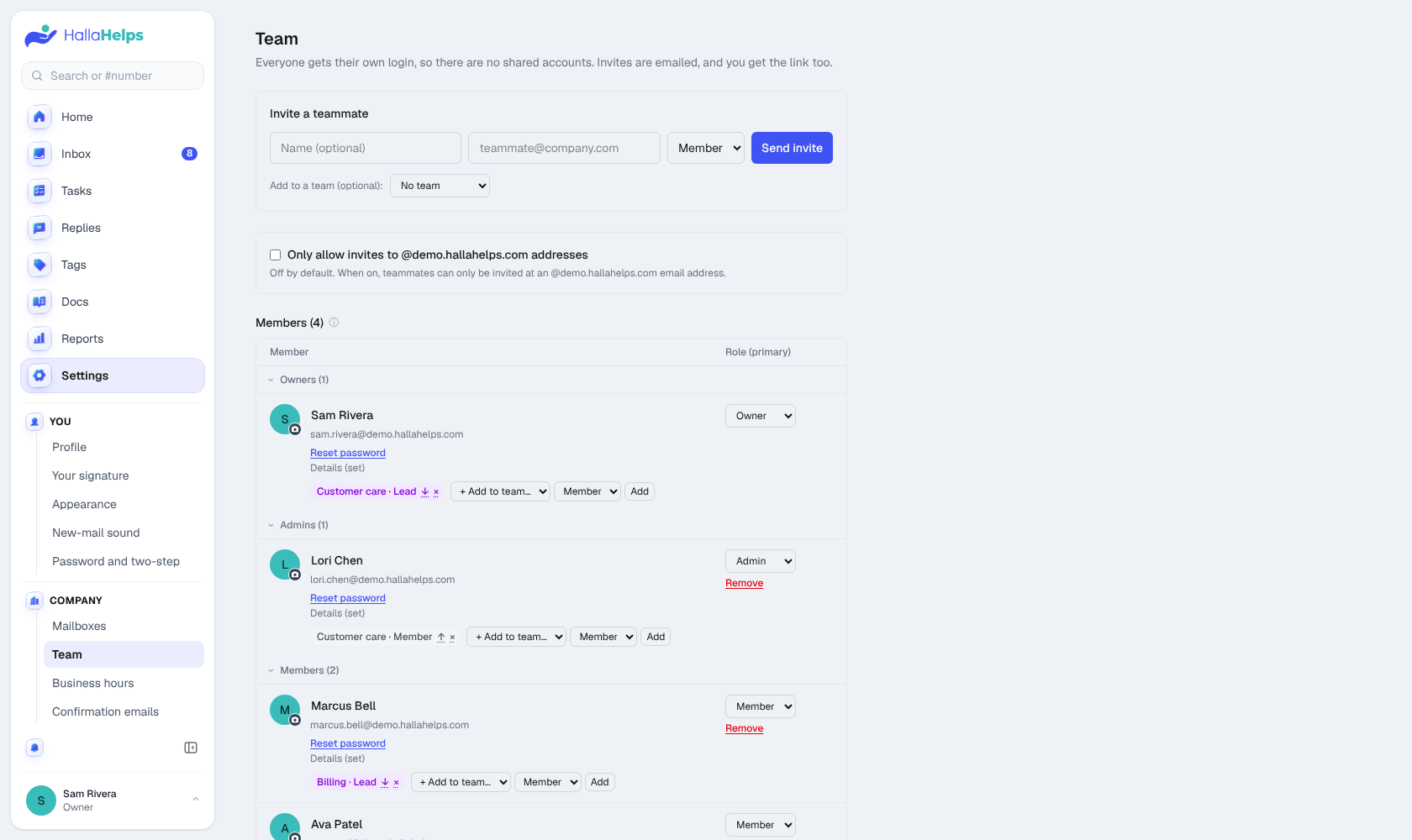
- Enter the person's name (optional) and email.
- Pick a role, and optionally a team.
- Click Send invite. We email them a link to join, and they choose their own password and name.
The link also shows on the page, so you can send it yourself if the email doesn't turn up (ask them to check spam first). Invites last 3 days. You can resend or cancel a pending invite from the same page; resending emails a fresh link and the old one stops working.
Roles
- Member: answers tickets, writes notes, uses tags and saved replies.
- Admin: everything a member can do, plus settings, mailboxes, the team, reports and the help center.
- Owner: everything an admin can do, plus billing and deleting the company. A company can have up to two owners.
One person per seat
Every seat is one named person with their own login. That's how HallaHelps shows who replied, who's viewing a ticket and who changed what. Sharing a login isn't allowed. When someone leaves, remove them and invite their replacement.
Only your company's addresses
Turn on Only allow invites to @yourcompany.com addresses to stop invites going to personal email accounts by mistake.
Teams
Group people into teams (for example Customer care and Billing) to filter reports and link a mailbox to the team that handles it. See Teams and departments.