
Working a conversation
Click any conversation in the list to open it beside the list. The list keeps its filters, and the arrows at the top step to the next or previous one.
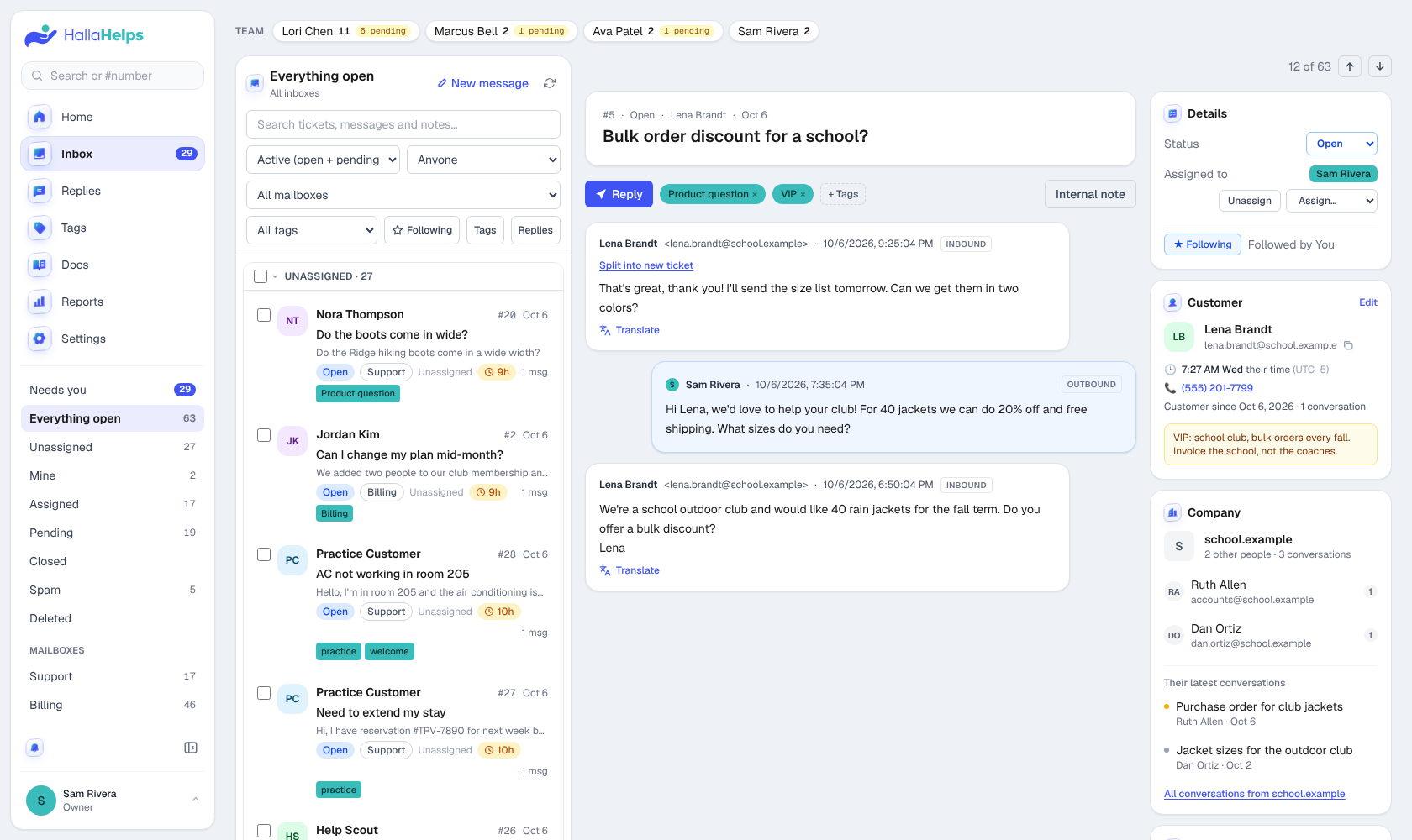
The list
Each row shows the customer, subject, a preview of the latest message, the status, its priority (when it isn't Normal), who it's assigned to, and how long the customer has been waiting.
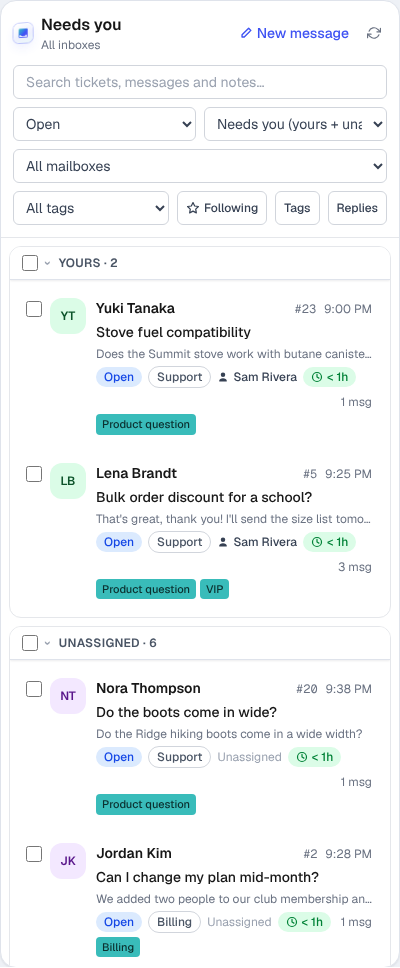
The waiting time turns from green to amber to red the longer a customer waits for a reply (owners and admins set the times in Settings > Company > Waiting times). A long wait also gets a red edge on the row.
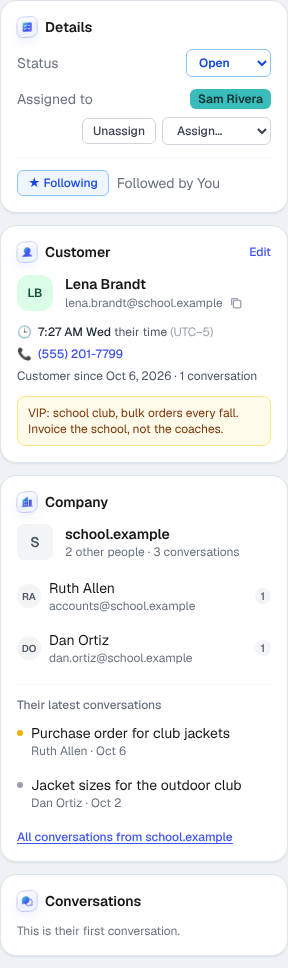
Details panel
On a wide screen, the Details panel on the right holds:
- Status: Open, Pending (waiting on the customer), Closed or Spam.
- Priority: Urgent, High, Normal or Low. Urgent and High show as a colored label in the list.
- Assigned to: click Take it to make it yours, Unassign, or Assign it to a teammate.
- Follow: get it in your Following list without owning it.
- Customer: who they are, their local time right now (from the time zone in their email, with "night there" late at night), how long they've been a customer, their company and job title, location, website, phone number and your team's note about them. A phone number in their email signature can be saved with one click.
- Company: when other people from the same company (the same email domain, like @acme.com) have written in, who they are and their latest conversations. Personal addresses like Gmail don't count.
- Conversations: the customer's earlier conversations, with the option to merge one in.
Click Edit at the top right of the Customer card to change their name, the address replies go to, their phone, company, job title, location, website or the note. The note is only for your team and shows on every conversation with that customer. In the same place you can link another address they write from, and (owners and admins) erase the customer.
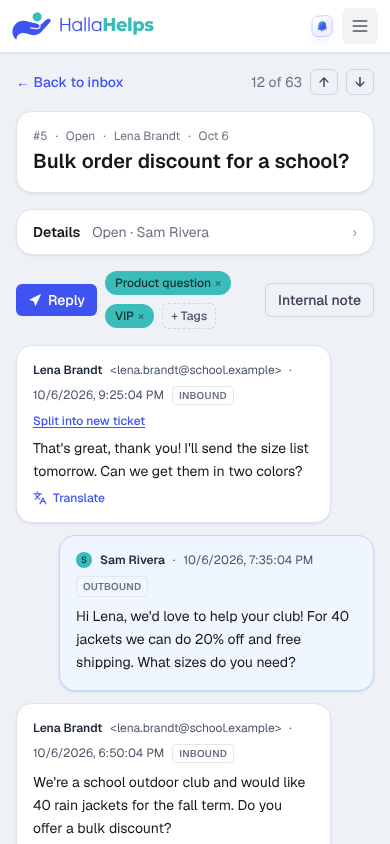
On a narrow screen (a phone, or a laptop with the list beside the ticket) the panel folds into one Details row. Tap it to open.
Status in short
- Open: needs an answer from your team.
- Pending: you've replied and are waiting on the customer. Pending conversations never turn red.
- Closed: done. If the customer writes back, it reopens on its own.
- Spam: junk. Moves out of the way. See Spam, deleting and restoring.
Previous and next
The arrows at the top of a conversation step through the same list you opened it from, in the same order.